 Sally
Features
Find a command. Make its shortcut yours.
The command palette searches the commands for the window you are using. Open Commands › Command palette in the main window; Ctrl+Shift+P is the recommended shortcut when it is free.
Search by command or provider
The Provider column shows Sally for built-in commands and the plugin's display name for plugin commands. Type a plugin name, such as PictView, to find its actions. Unavailable commands keep their provider and explain why they cannot run; Available only hides them.
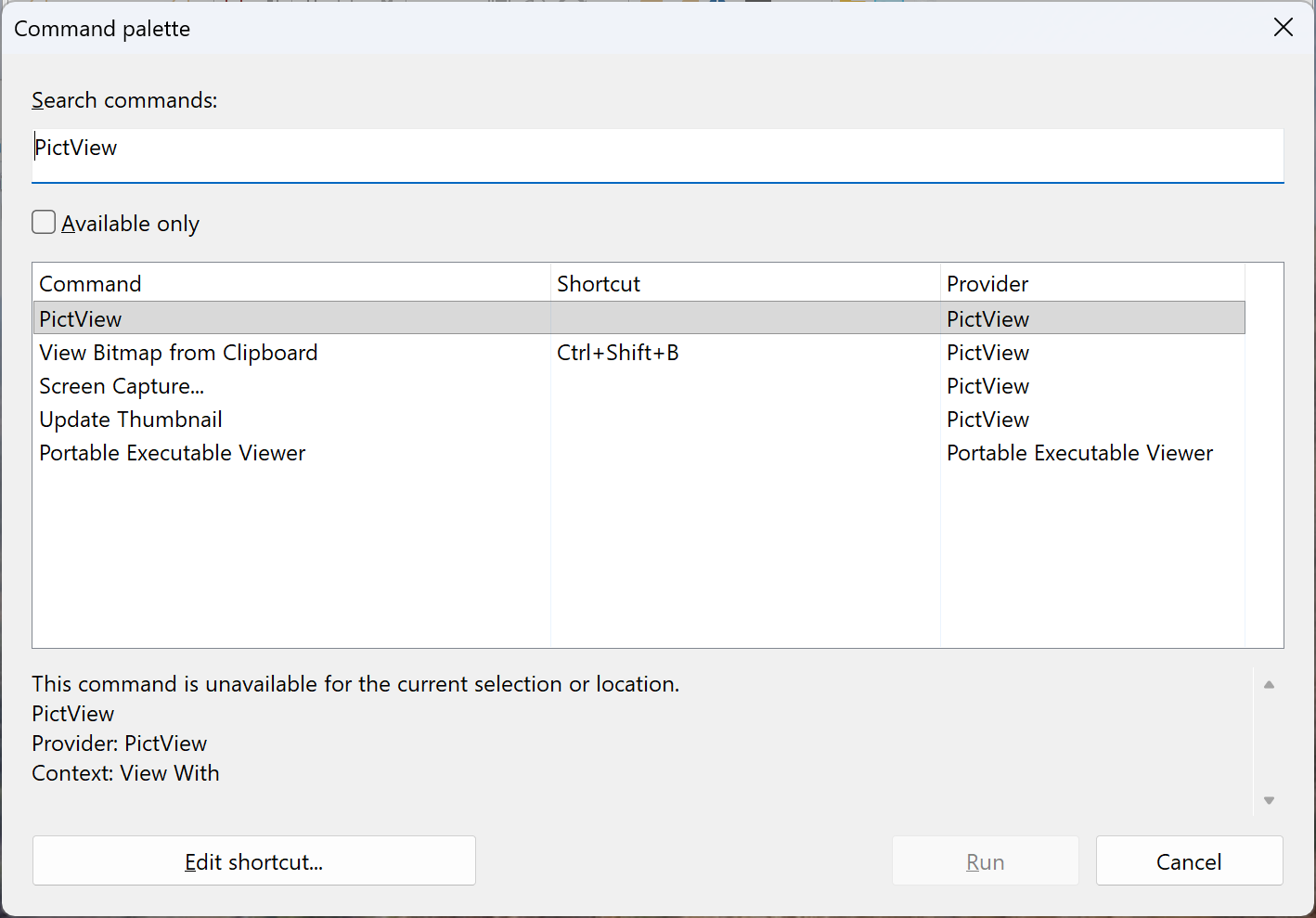
Use the arrow keys to select a result, Enter or double-click to run it, and Escape to return to the original control. Edit shortcut (Alt+E in the English UI) opens the selected command in the shortcut editor, including an unavailable command.
Keep the aliases you use
Configuration › Keyboard › Command shortcuts lets you add, replace, remove or reset a command's bindings. A shortcut belongs to a context, such as the main window or a viewer. Conflicts are explained before a change; swapping two selected bindings preserves their other aliases.
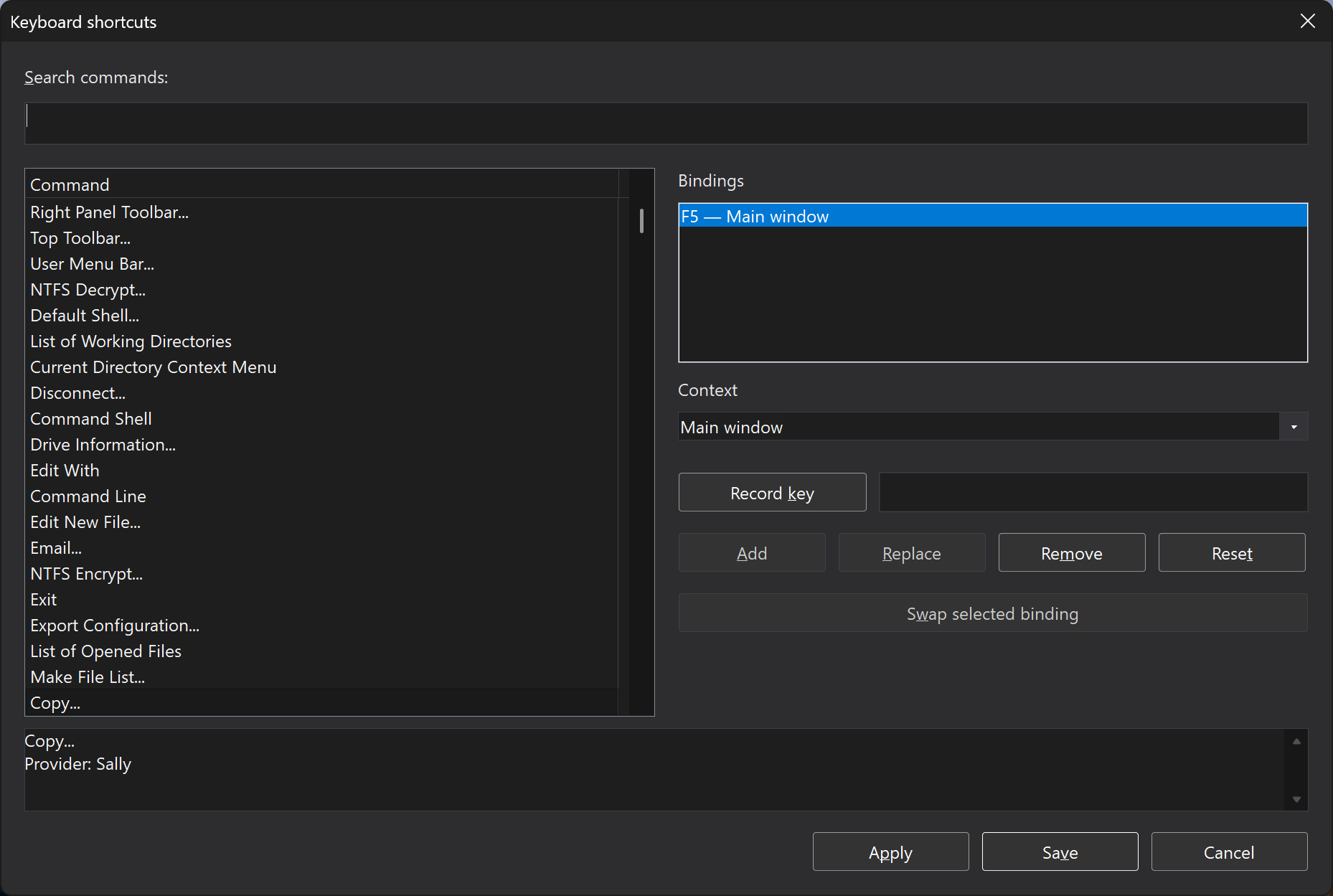
Apply activates the draft. Save applies it and saves it to the current profile; a failed save keeps the draft open. Cancel discards changes since Apply. Text editing, navigation, active tools and cancellation keep priority in their protected contexts.
Commands in plugin windows
Supported viewers and dialogs have their own menu-accessible palettes, initially without a palette shortcut. In PictView, Ctrl+Shift+P and Ctrl+P both print. A plugin's main menu commands remain configurable even when its own windows use only that plugin's native shortcuts.